
Please note: to access our SRT IPTV service, you can install any app or player. In this beginner's guide, we use the free apps Supreme TV, Ibo Player, and Tivimate as examples.
Buy TV Pro setup on a Fire TV Stick
From your device's home screen, hover your mouse over the search option.
1. First, we install the Downloader application.
With this application, you can manually install SRT IPTV on your FireStick (since downloads via the browser are not allowed).
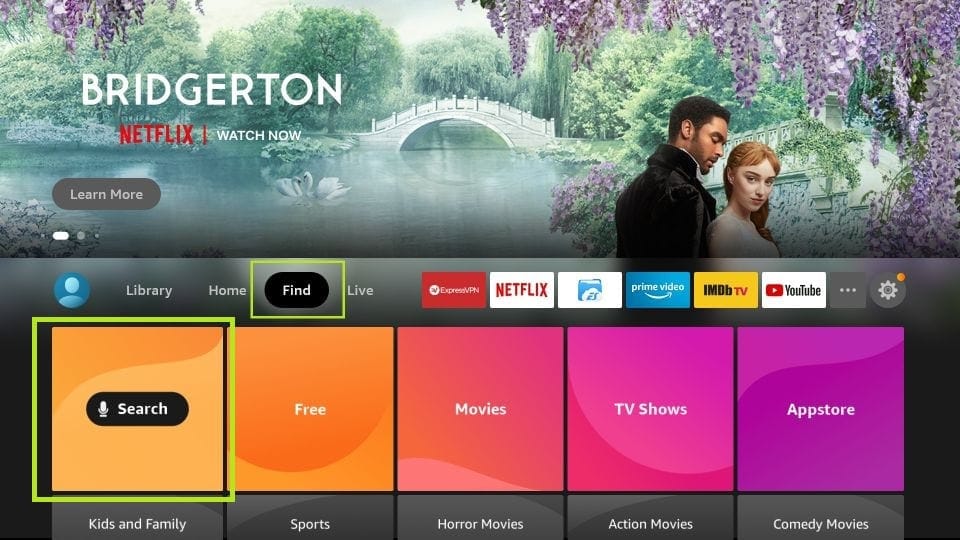
2. Click on the search option on the home screen of your FireStick.
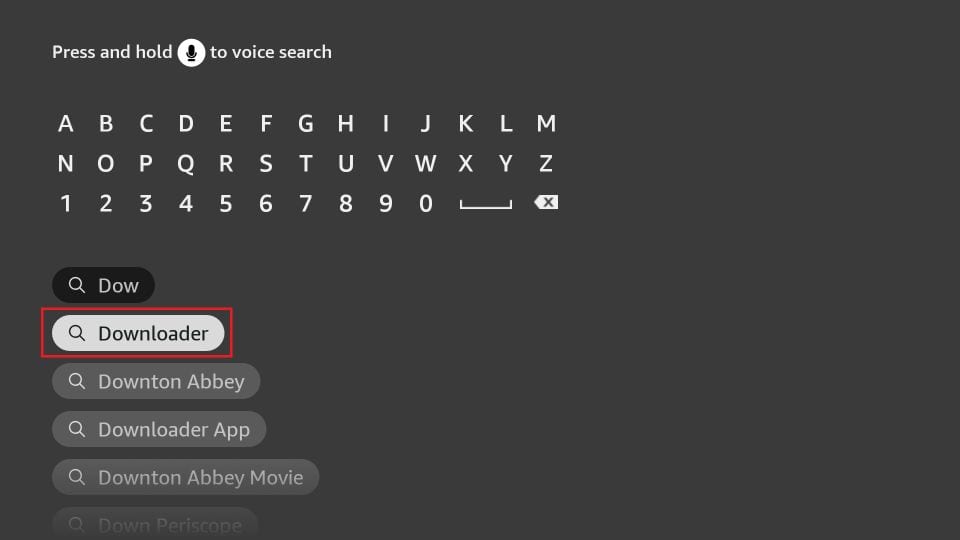
3. Enter the name of the application (this is Downloader ).
Click on the Downloader option when it appears in the search results.
Select the Downloader icon on the next screen and download and install the application.
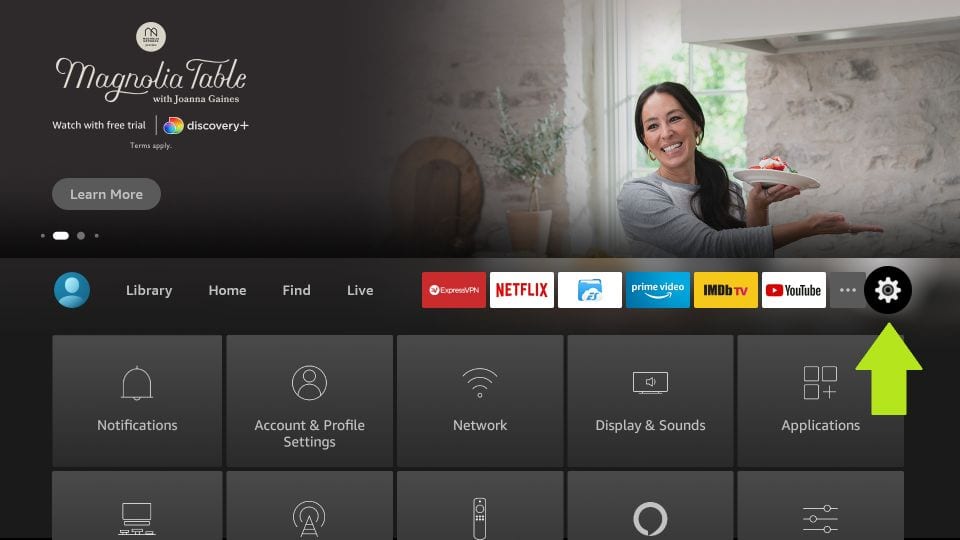
4. After installing the Downloader app, return to the home screen of your FireStick.
Click on Settings in the menu bar.
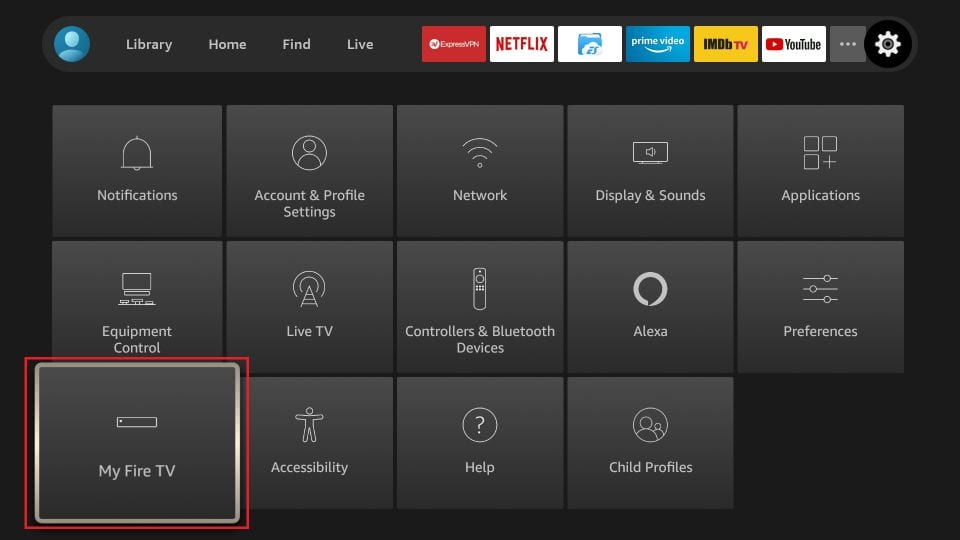
5. Select the My Fire TV option in the settings.
6. When the following options appear on the screen, click Developer Options.
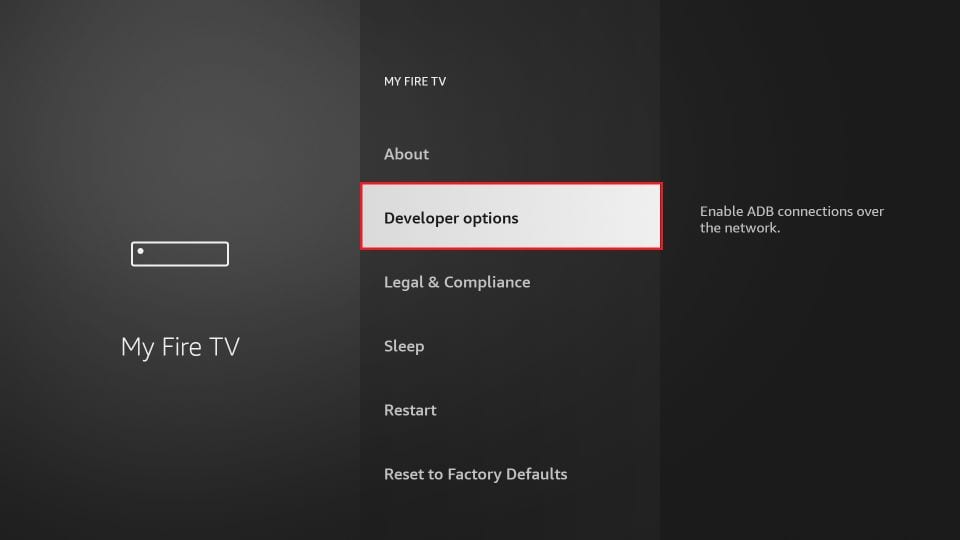
7. Click on "Install from unknown applications".
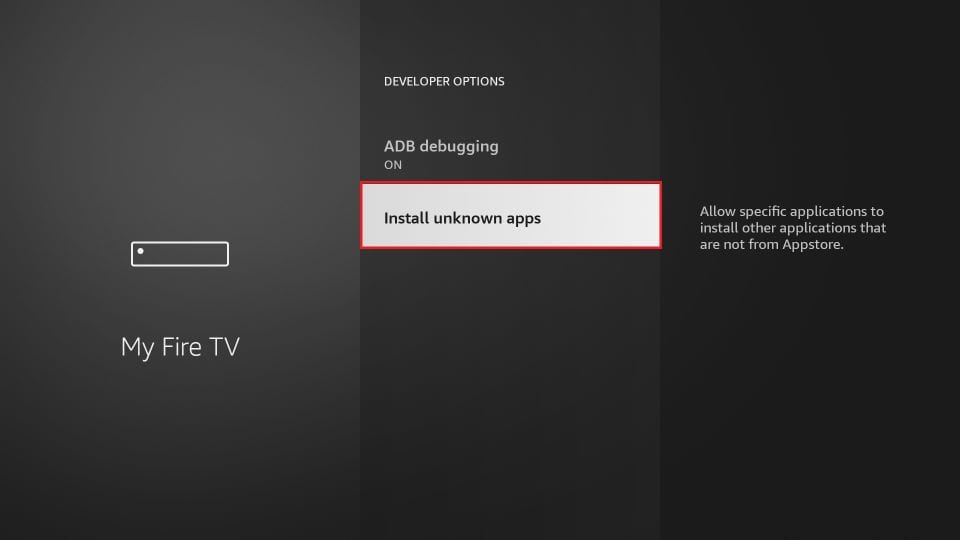
8. Click on Downloader to activate the option .
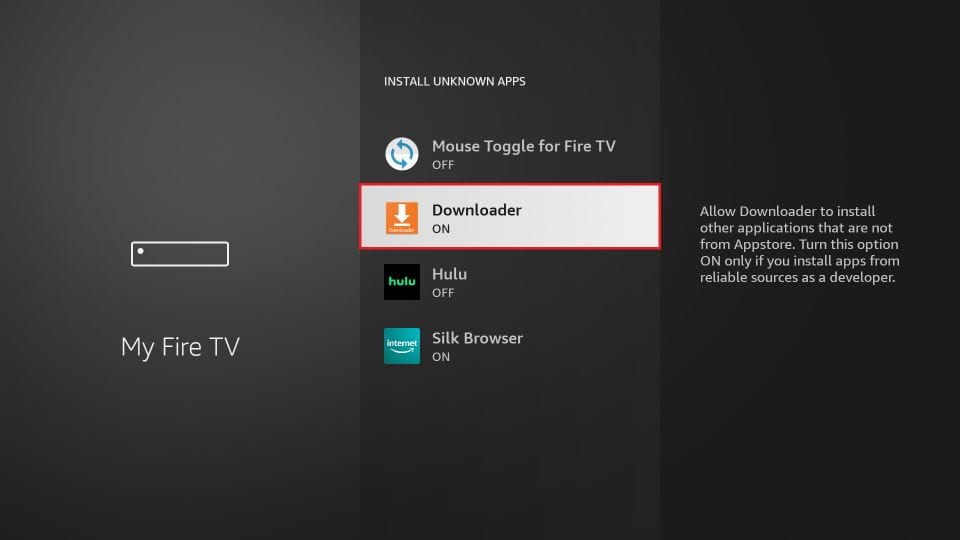
You have now configured your Fire Stick settings to allow the installation of SRT IPTV and other third-party apps. Follow the steps below:
9. You can now open the Downloader
application. The first time you run this application, a number of messages will appear. Ignore these until the next screen appears.
On this screen, you need to click on the URL text box on the right (make sure the 'Home' option is selected in the menu on the left) where 'http://' is displayed.
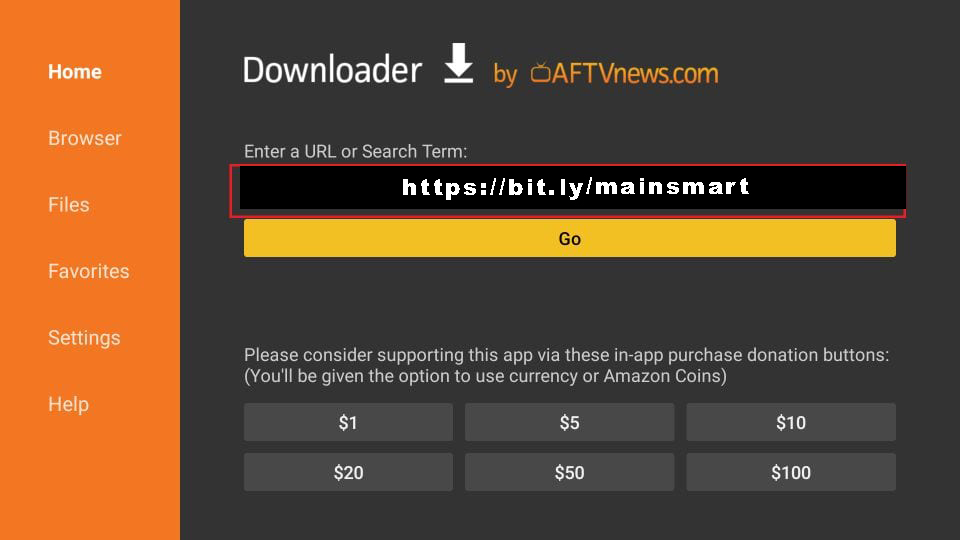
10. Enter the following path in this window: http://aftv.news/223476 or the download code: 223476
Click on GO
11. Wait a minute or two while SRT IPTVis downloaded to your FireStick device.
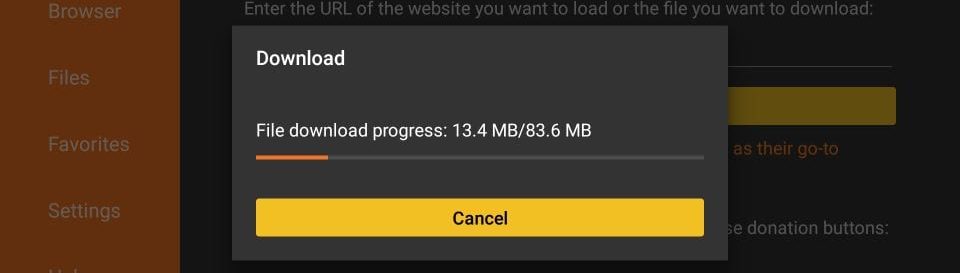
12. As soon as the download is complete, the Downloader application executes the APK file and starts the installation.
Click on Install
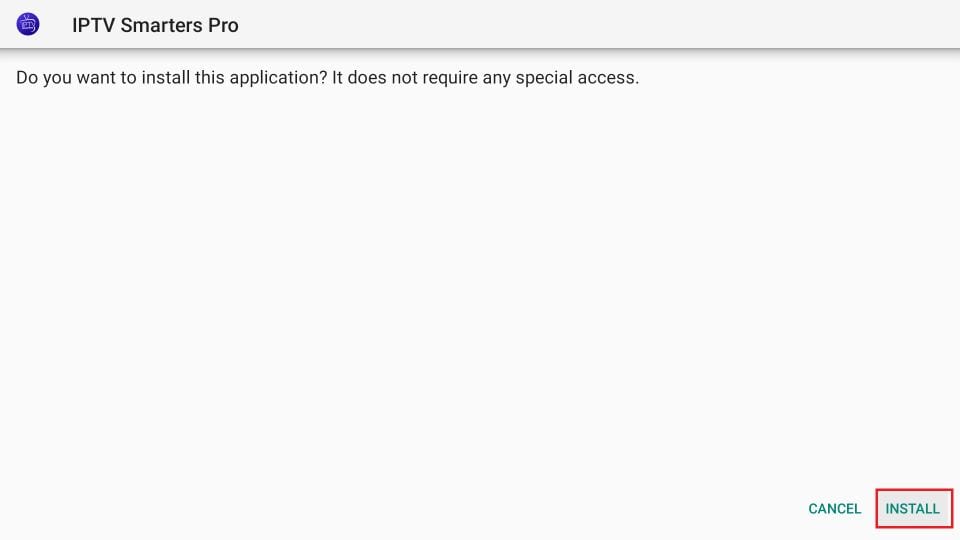
13. Wait until the installation is complete.
14. The installation is completed with the message "Application installed".
You can now click OPEN and start using SRT IPTV.
I recommend selecting 'DONE' so that you can delete the APK file and free up space on your FireStick.
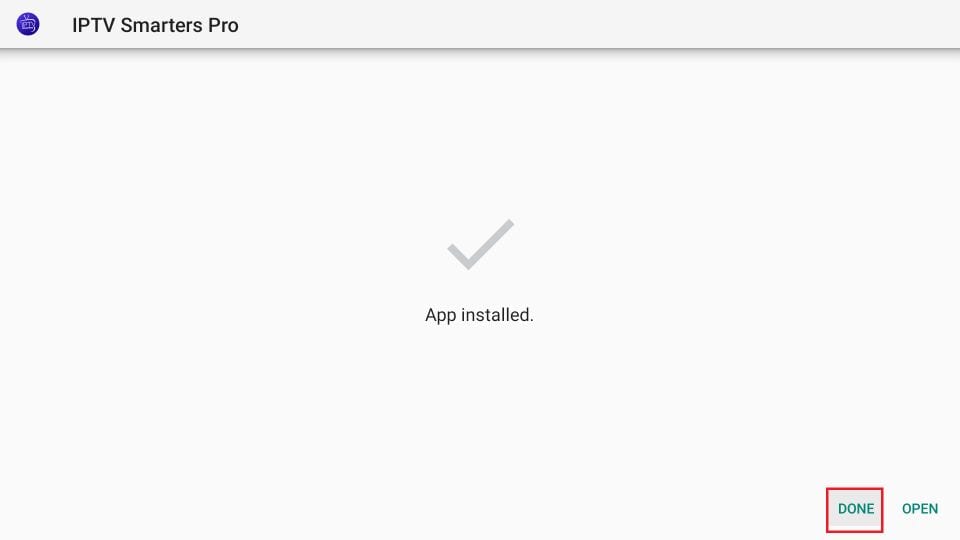
15. If you clicked 'DONE' above, you will be redirected to the download interface.
Click on Delete
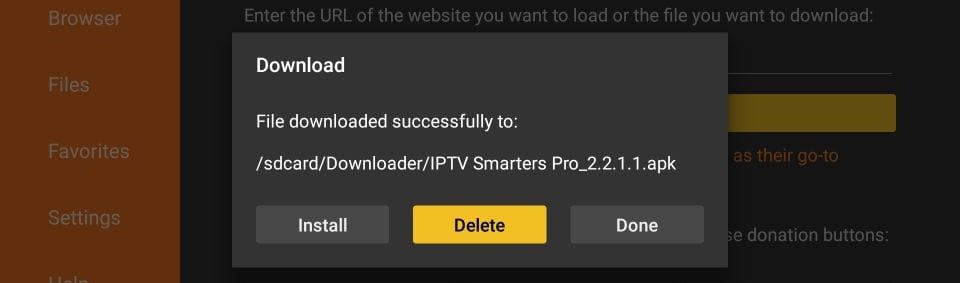
Fantastic! The SRT IPTV app is now available for FireStick.
Start Buy TV Pro on your Firestick by going to the 'Your apps and channels' section, or by pressing and holding the Home button and then selecting 'Apps' on the next screen.
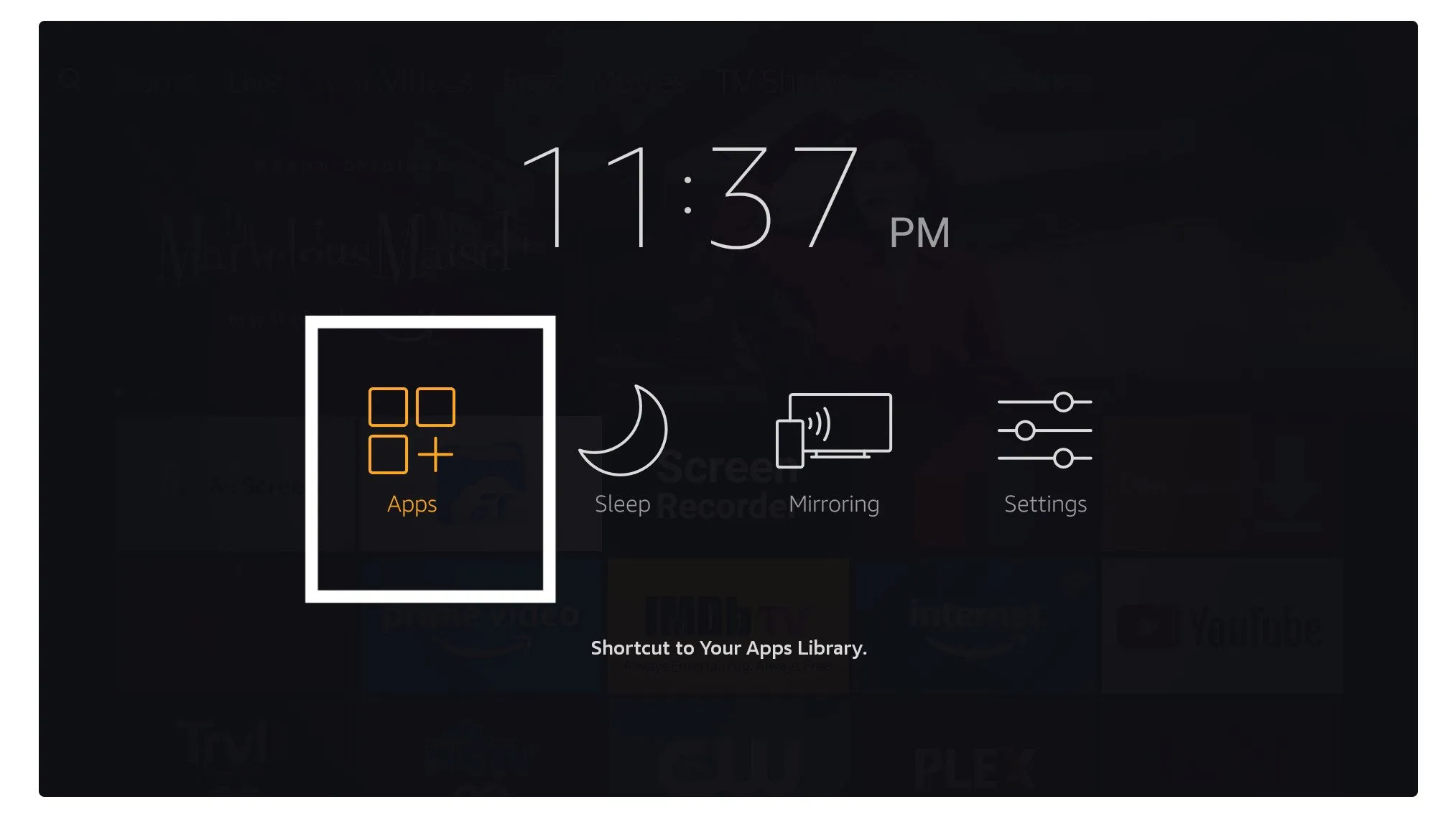
Scroll down and you will see the application appear at the bottom; tap "Select" to launch it .
Upon first use, you will be asked to accept the terms of use; to do so, click the 'Accept' button.
Once this step is completed, you will be asked to add a user in the next step ; to do this, click the 'Add user' button.
On the next screen, you will see various options to connect to Smarters Pro. Choose the connection via the Xtreme Codes API ; this is the fastest method.
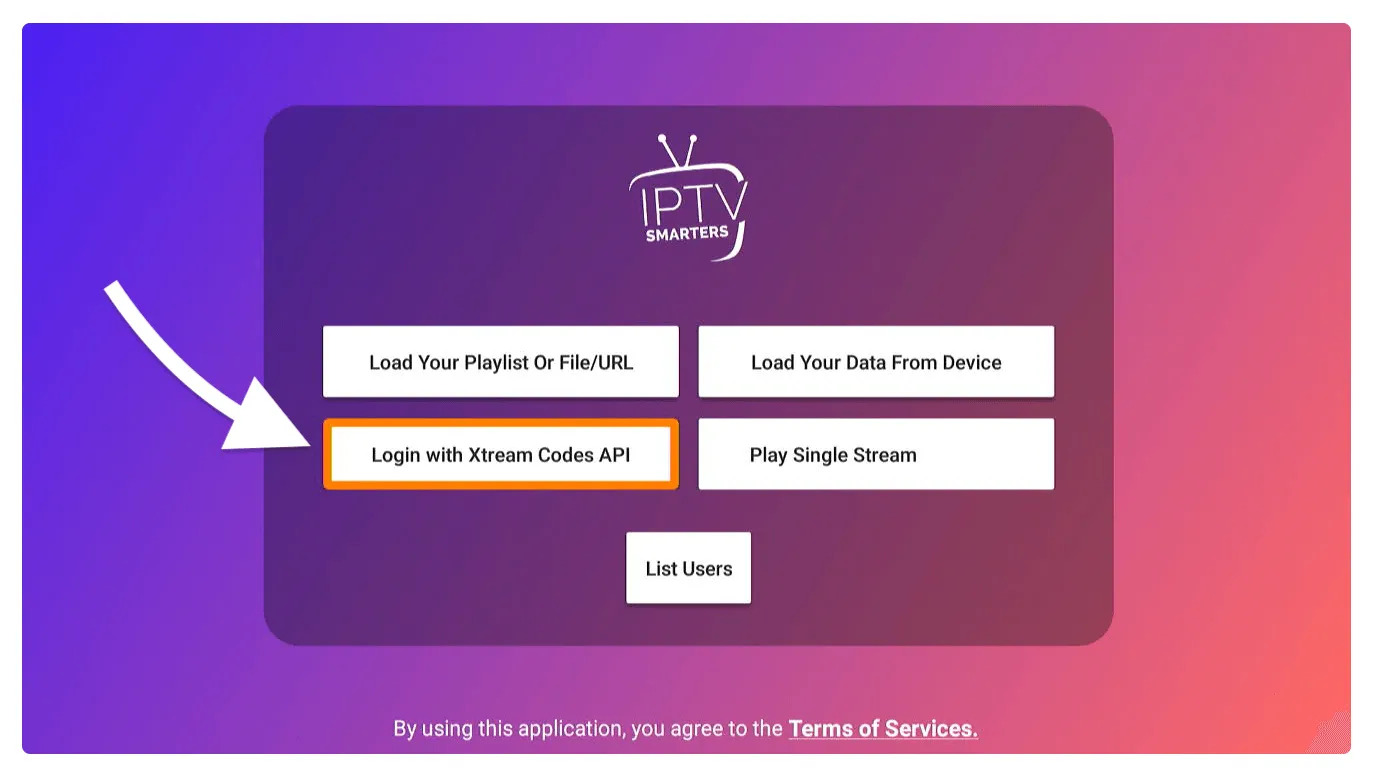
Next, you will see various fields that you must fill in as follows:
- Username: Enter your username.
- Username: Enter the username you received from SRT IPTV.
- Password: This is also provided by the provider SRT IPTV.
- URL: Simply copy the portal URL you received from the supplier and paste it here.
Once all fields have been filled in, click on 'Add user' to create a new profile.
You will then see the user appear on your screen; next, click on the user you created.
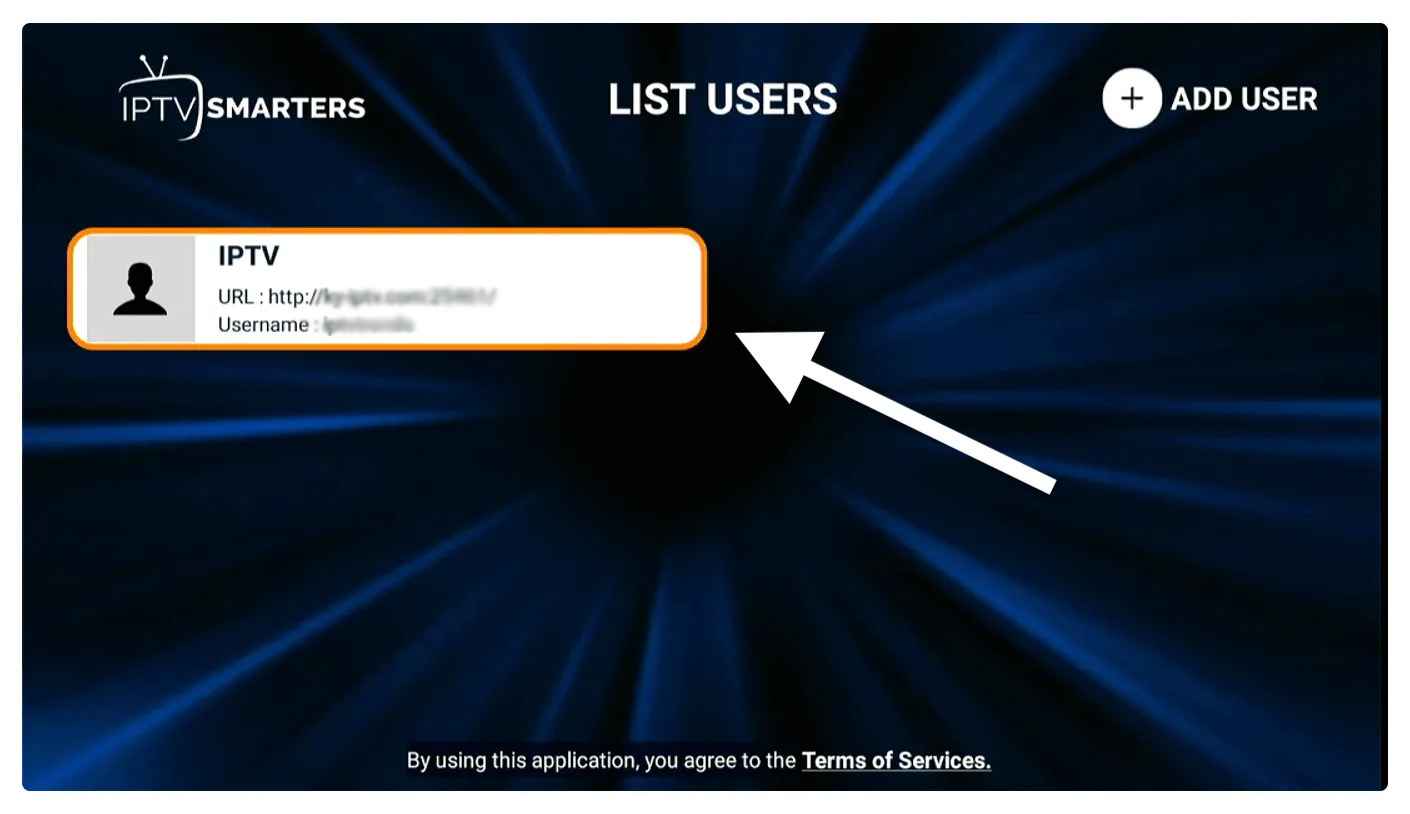
On the next screen, 'Download live channels, movies, and TV shows' will appear. Wait until the download is complete.
Once the download is complete, a simple interface appears with options for live TV, series, movies , and more. Select one of these options to view the available content in that category.
How do you set up IBO Player Pro on a Fire TV Stick?
1. Open the Downloader application
On this screen, you need to click on the URL text box on the right (make sure the 'Home' option is selected in the menu on the left) where 'http://' is displayed.
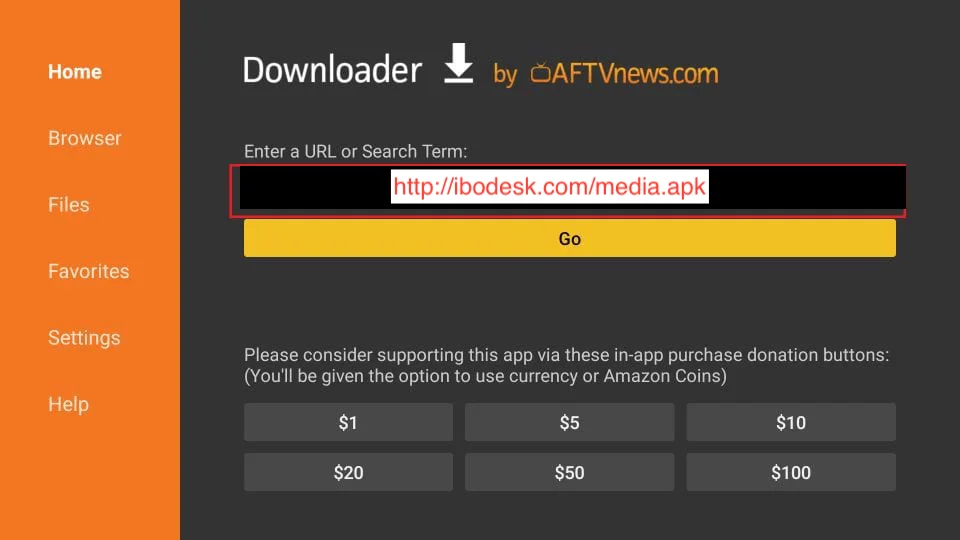
2. Enter the following path in this window: http://aftv.news/223476 (Or you can simply enter the download code: 223476)
Click on GO
3. Wait a minute or two while the IBO Player application is downloaded to your FireStick device.
4. As soon as the download is complete, the Downloader application executes the APK file and starts the installation.
Click on Install
5. Wait until the installation is complete.
6. The installation is completed with the message "Application installed".
You can now click OPEN and start using IBO Player.
I recommend selecting 'DONE' so that you can delete the APK file and free up space on your FireStick.
7. If you clicked 'DONE' above, you will be redirected to the download interface.
Click on Delete
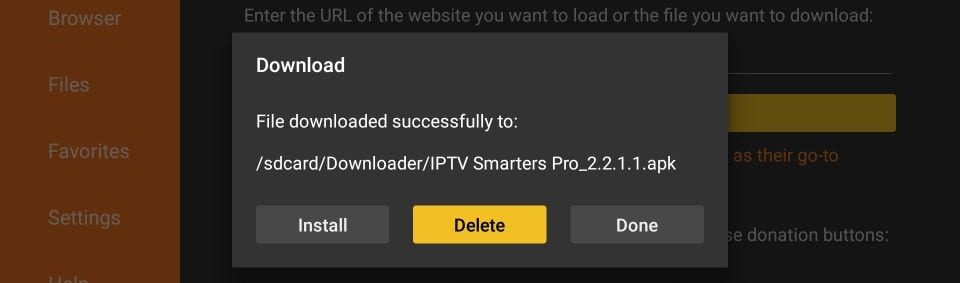
Fantastic! The IBO Player app is now available for FireStick.
Start IBO Player on your Firestick by going to the 'Your apps and channels' section, or by pressing and holding the Home button and then selecting 'Apps' on the next screen.
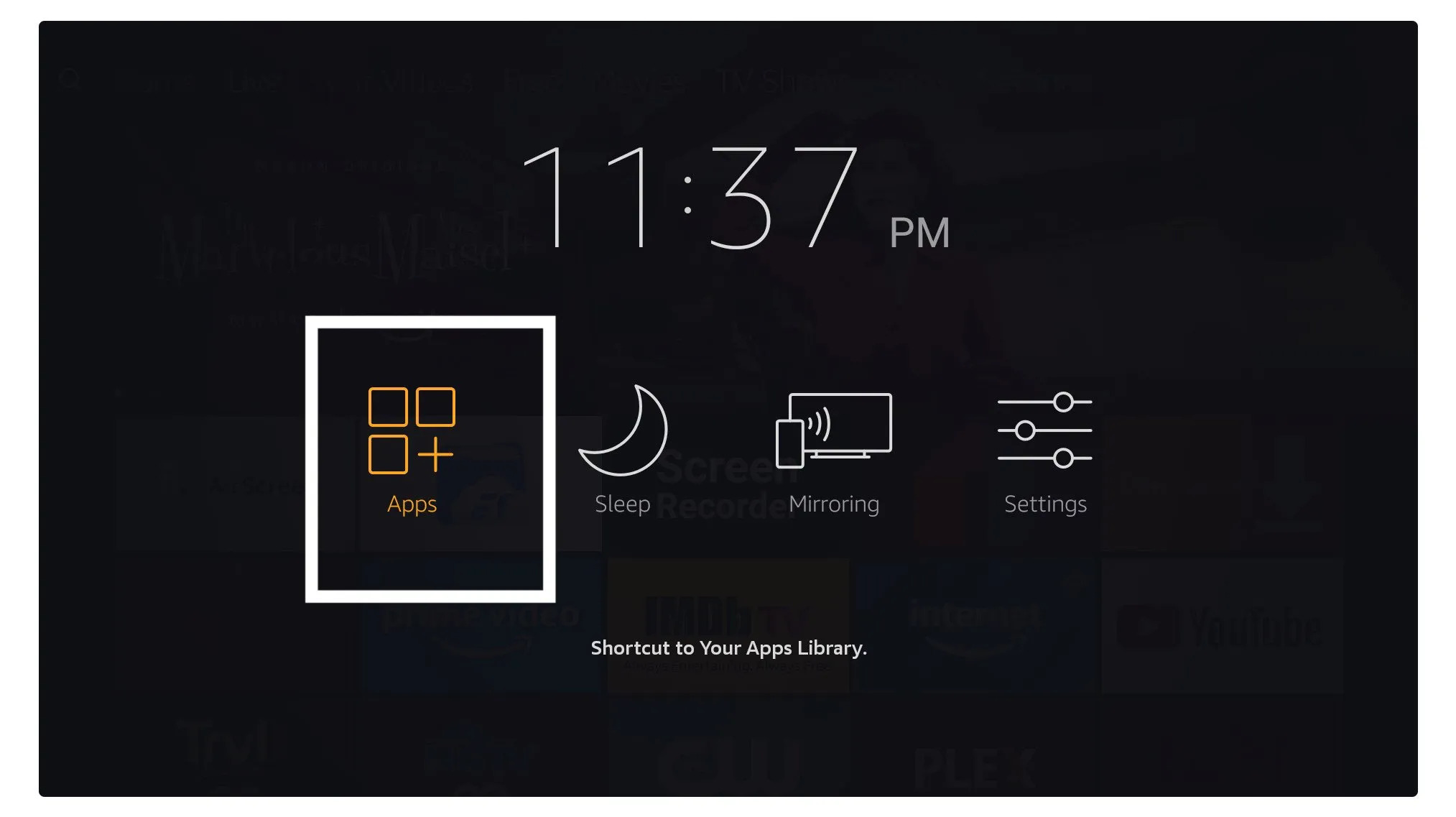
Scroll down and you will see the application appear at the bottom; tap "Select" to launch it .
When you launch the IBO Player application for the first time, the MAC address and device key are displayed on a screen. With this information, you can easily proceed with the installation of the service.
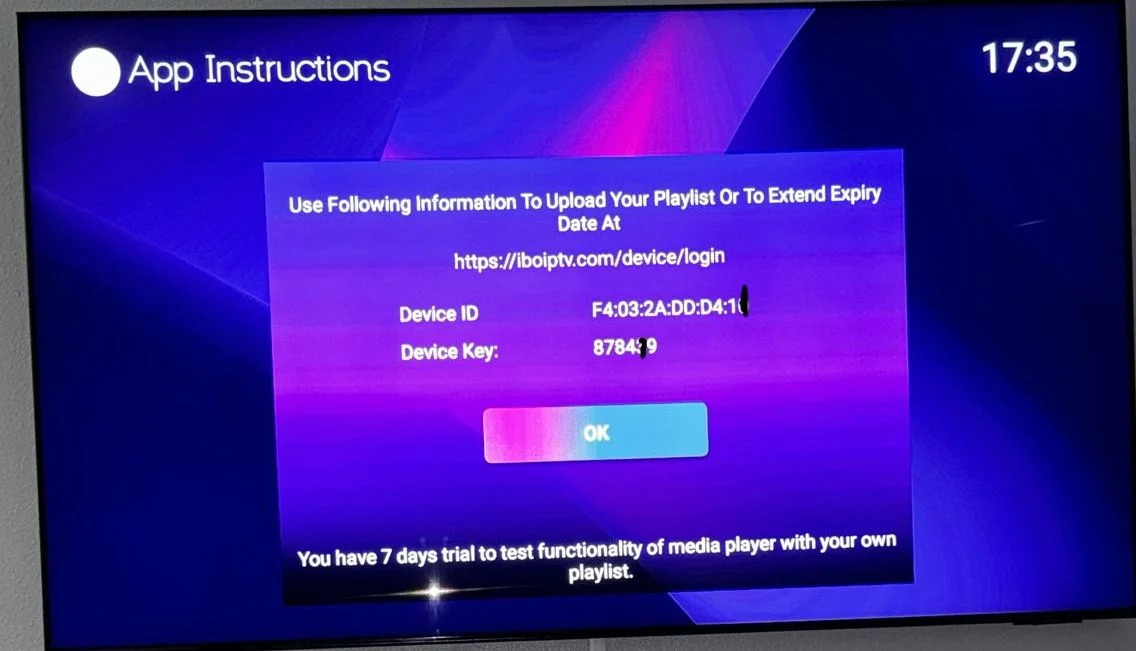
1. To add the service, go to this link on your phone or laptop: https://iboplayer.com/device/login
Enter the information displayed on the TV (MAC address and key) into the designated fields to log in to the application.
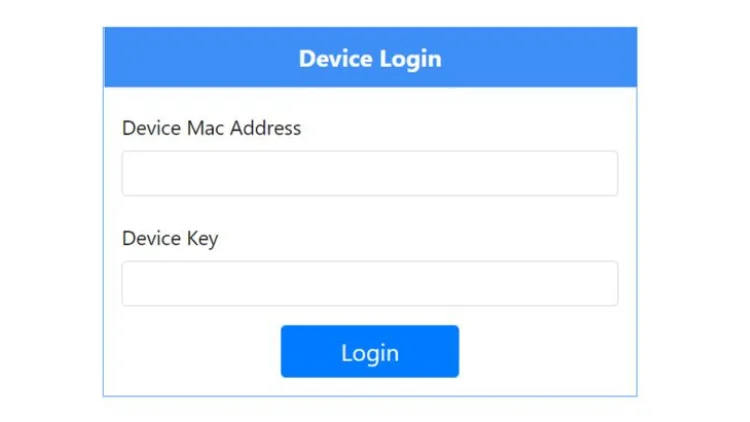
2. Once the connection is established, you have two configuration methods: via the m3u link (+ add a playlist) or via the Xtream detail code (+ add an XC playlist).
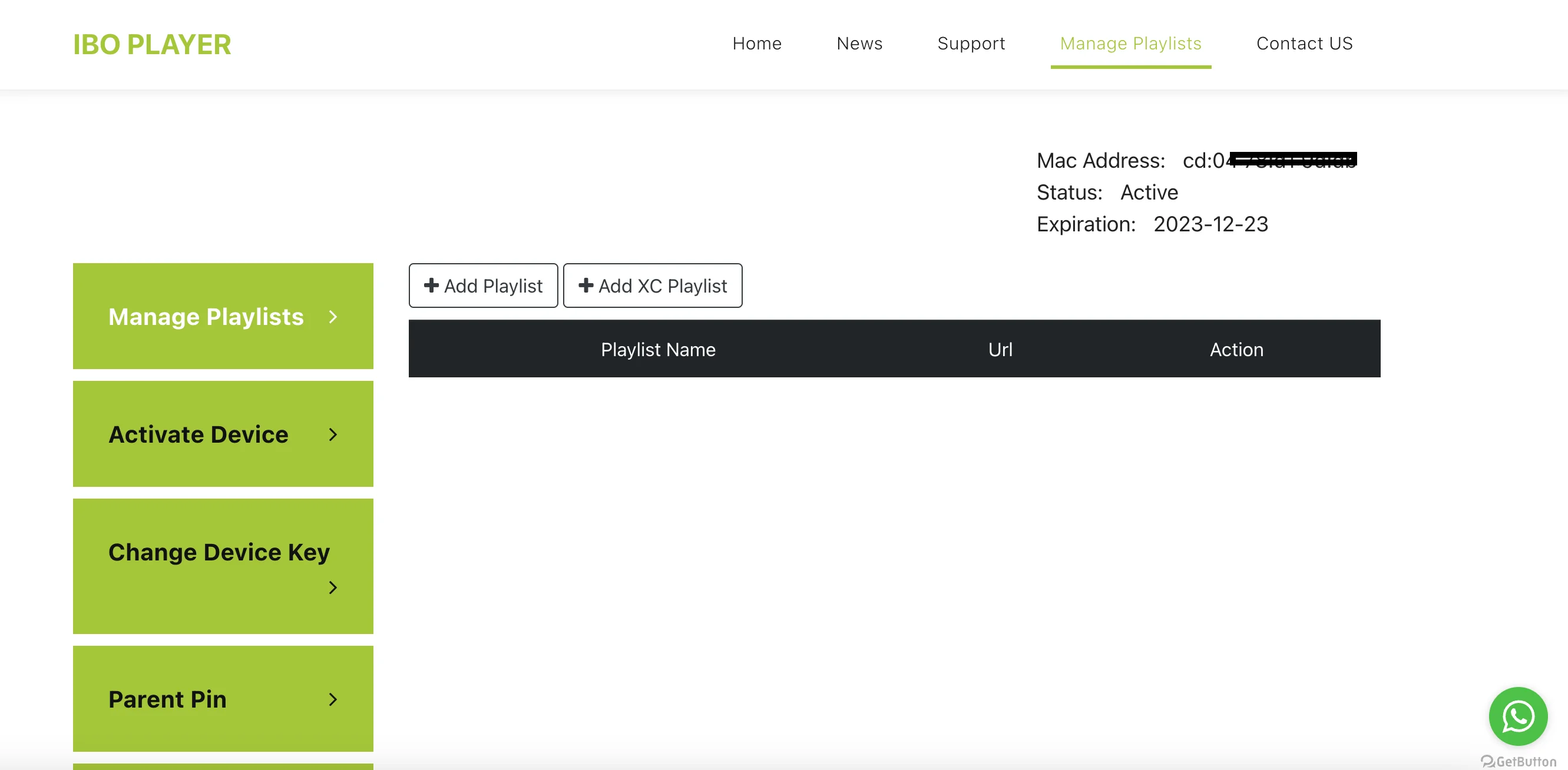
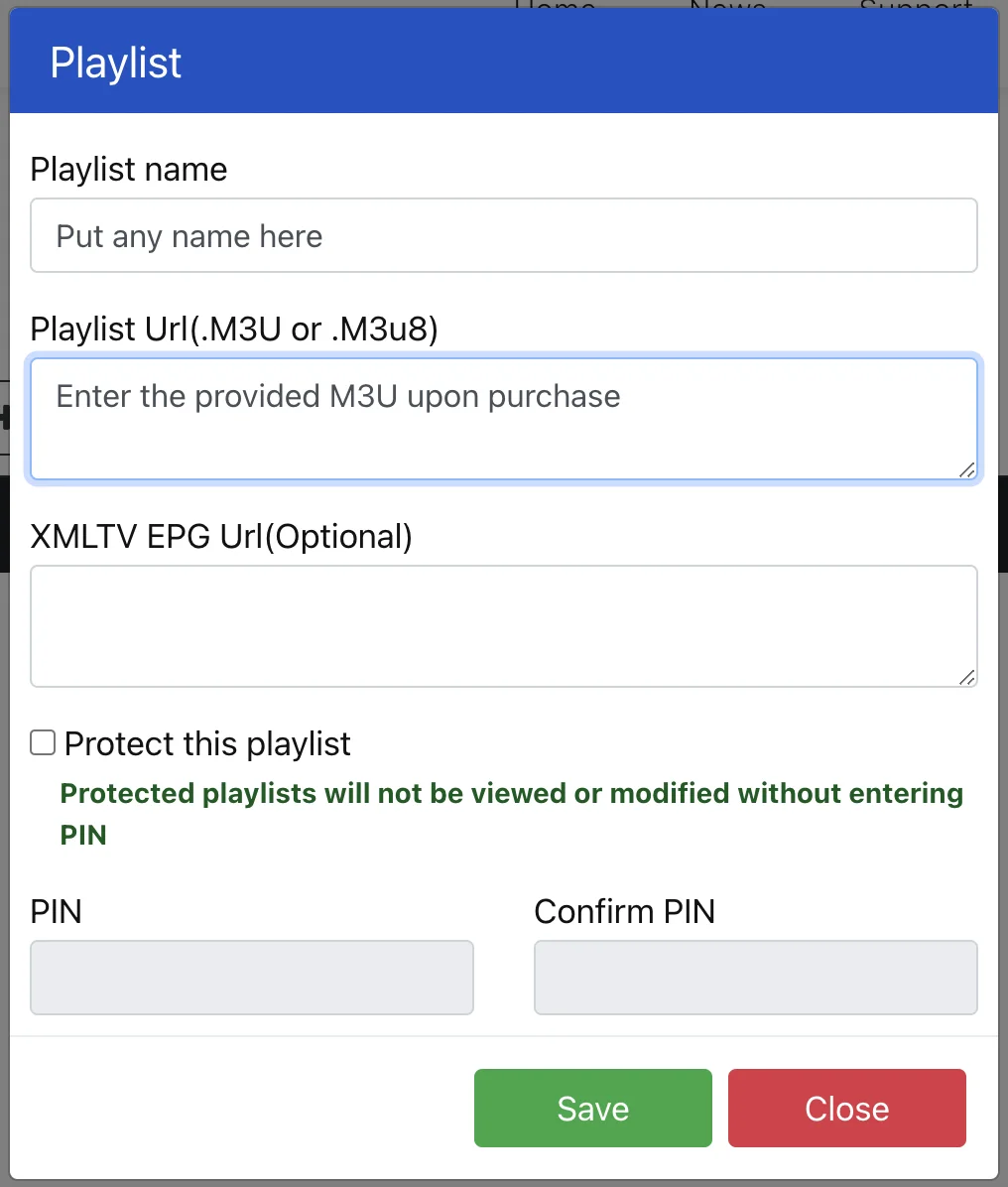
3. Click on "Add a playlist" and enter the M3U link as the URL for the playlist (you will receive this by email after purchase).
Final step: go back to your TV, restart the application, and the service should work.
FOR TIVIMATE
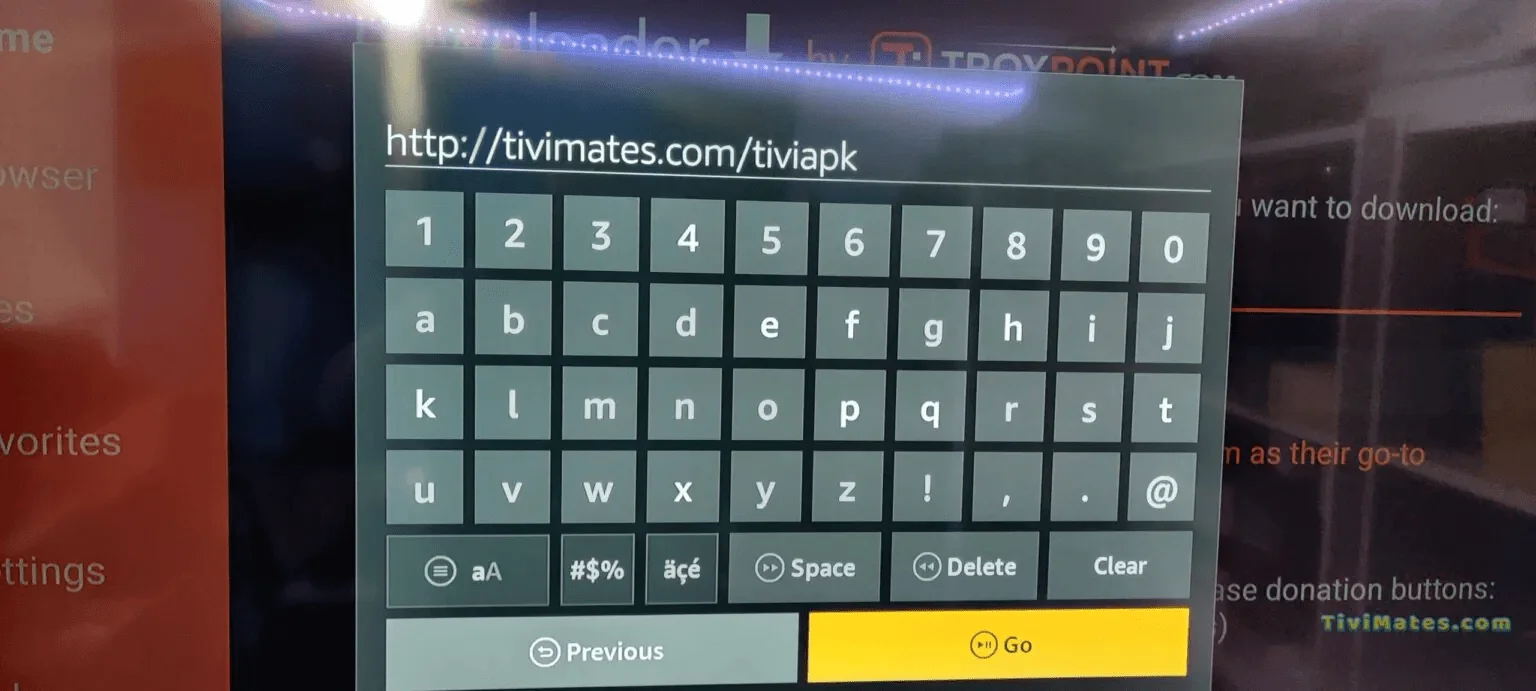
1. Enter the following URL exactly as shown here: https://tivimates.com/tiviapk and click on "Go".
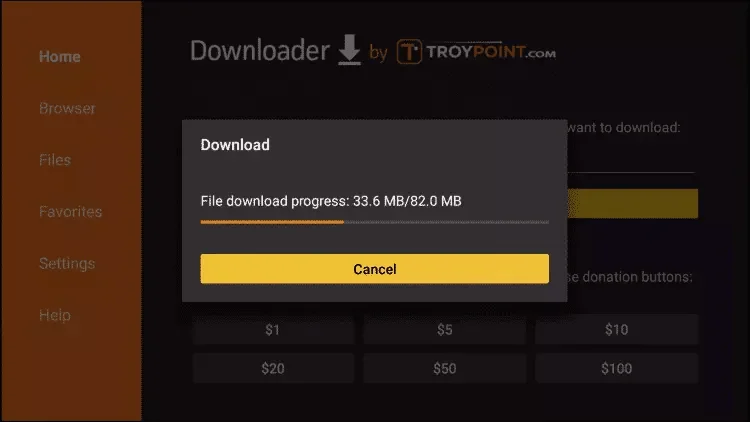
2. Wait until the file download is complete.
3. Click on Install, and once the installation is complete, you can open the application.
4. Click on "Add a playlist" and then choose "Xtream Codes".
5. Enter the login details that we sent you via WhatsApp, email, or instant messaging.
Should you experience any problems during the installation of the service, please feel free to contact us via email, the chat on our website, or WhatsApp. We will do our best to help you.
Step 1: You can download IPTV Smarters via your TV's app store (Samsung, LG, etc.).
Step 2: Open the application after you have downloaded it and enter your login details.
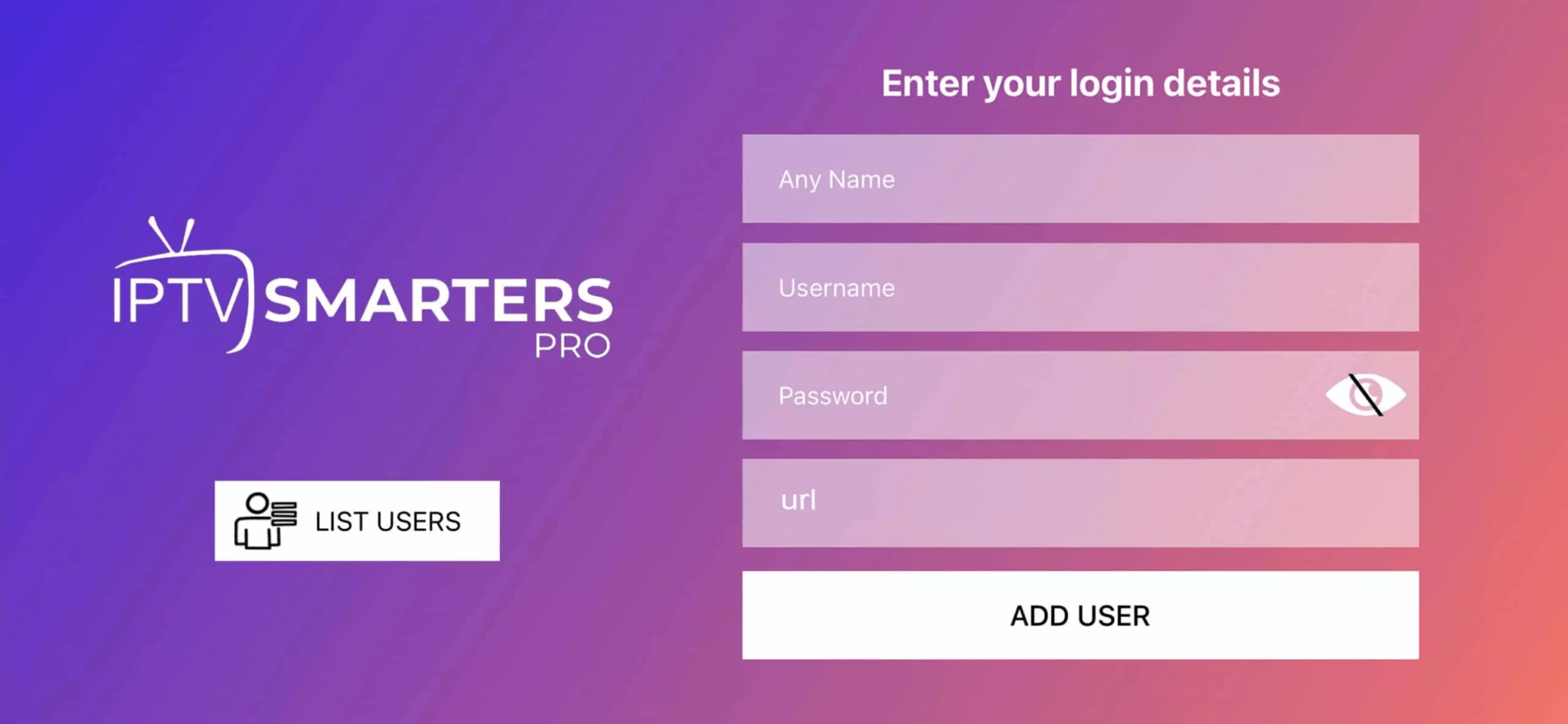
Step 3: Enter the login details that we provided to you after your registration.
PS: Sometimes smart TVs are not compatible with the IPTV Smarters app. In that case, you may need to use another app, such as iBo Player.
How to set up IPTV on Apple/iOS with IPTV Smarters Player?
Step 1: First, download the IPTV Smarters app from the App Store via this URL:
https://apps.apple.com/in/app/smarters-player-lite/id1628995509
Or you can search for it in the App Store.
Install the app on your iOS device.
Step 2: Open the application after you have downloaded it and enter your login details.
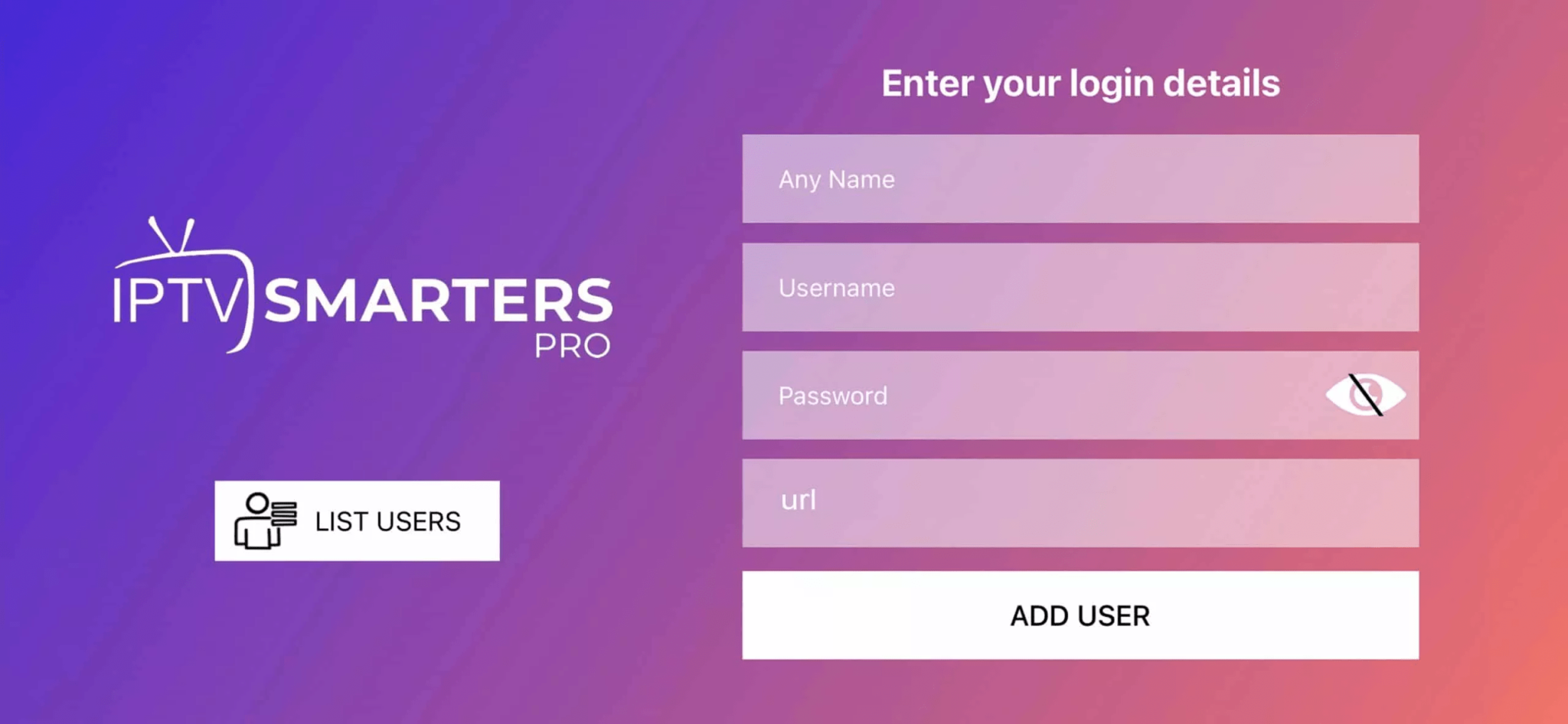
Step 3: Enter the login details that we provided to you after your registration.
Now click on "ADD USER" to proceed to the next section.
Step 4: Wait a few seconds.
Step 5: Now click on the "Live TV" icon, as indicated by a red arrow in the image.
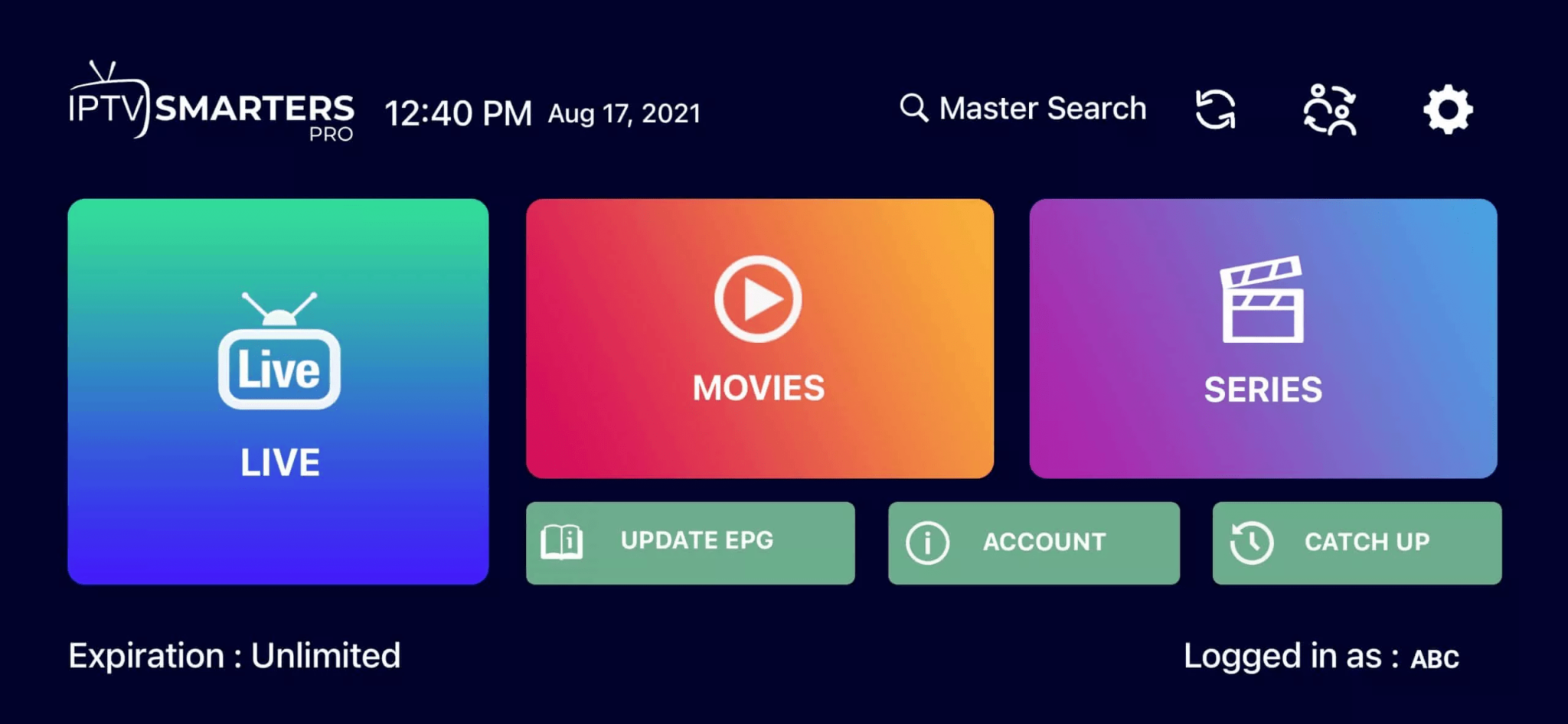
Step 6: Now you need to select the group of channels you want to view and proceed to the next section.
Step 7: Now click on the channel name and then double-click on the small window to make it full-screen; this is the final step.
Step 8: To add the EPG, you do not need to add an EPG URL. Simply click on "Install EPG".
Doing
Step 1:
Send us the MAC address of your MAG via WhatsApp/email/live chat/order page.
Step 2:
After you have made the payment, we will send you the link to the portal.
Windows method:
Download the IPTV Smarters application via this URL: https://www.iptvsmarters.com/download?download=windows
MAC method:
Download the IPTV Smarters app via this URL: https://www.iptvsmarters.com/download?download=mac